Key takeaways
- Intuit stopped selling new Desktop Pro Plus, Premier Plus and Mac Plus subscriptions to new US customers on 30 September 2024.
- Older Desktop versions lose support on a fixed schedule: 2022 ended 31 May 2025 and 2023 ended 31 May 2026.
- Clean the company file before converting; errors and large history are the main causes of failed conversions.
- Reconcile the trial balance, AR and AP ageing, and bank balances before you stop using Desktop.
Why businesses are moving now
Intuit stopped selling new subscriptions for QuickBooks Desktop Pro Plus, Premier Plus and Mac Plus to new US customers on 30 September 2024. Existing subscribers can still renew, and QuickBooks Desktop Enterprise is still sold. However, each Desktop version has a support end date. Desktop 2022 lost support on 31 May 2025 and Desktop 2023 on 31 May 2026. Once a version loses support, online features such as bank feeds, payroll and security updates stop working.
Subscription prices for the remaining Desktop products have also risen, which has pushed many small businesses to compare the cost against QuickBooks Online.
Step 1: Decide what history you need
You do not always need every transaction since the business began. Common options are:
- Full history, which is best for audit-heavy businesses and smaller files.
- Recent years in detail, with older years summarised as journals.
- Opening balances only, starting fresh at a financial year-end and keeping the Desktop file archived for reference.
Agree this with your accountant before you start. It affects the cost, the timeline and how fast QuickBooks Online runs afterwards.
Step 2: Check the health of your company file
- Run Verify Data and Rebuild Data, and fix any errors reported.
- Reconcile all bank and credit card accounts up to a recent month.
- Clear old undeposited funds and unapplied customer payments and credits.
- Make duplicate or unused list entries inactive, or merge them.
- Note the file size and number of list entries, because very large files may need a different conversion route.
Step 3: Know what does not convert
The built-in conversion moves most lists, balances and transactions. Some items do not transfer, or transfer differently, depending on your edition. Typical examples include memorised reports, the audit trail, some payroll history, certain inventory settings and reminders. Build a list for your own file and decide which items to re-create, export to PDF or leave behind.
Step 4: Choose the right QuickBooks Online plan
Match the plan to users, classes and locations, inventory and reporting needs. Changing plans later is possible, but if you choose a plan without inventory or class tracking, data may not come across the way you expect.
Step 5: Run a test conversion
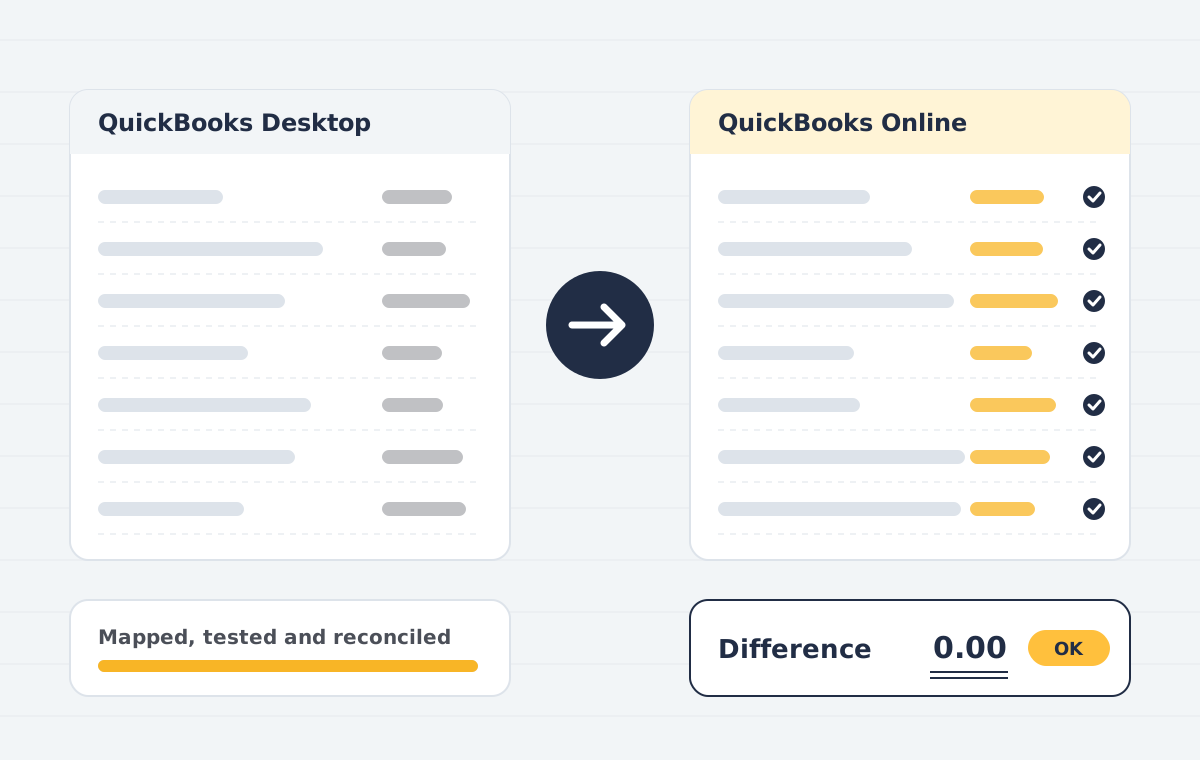
Convert into a test QuickBooks Online company first. Compare the profit and loss and balance sheet for at least two periods, AR and AP ageing, and inventory valuation. Investigate every difference before the live run.
Step 6: Cut over and reconcile
- Pick a cut-over date, ideally a month-end.
- Freeze entries in Desktop, take a backup and convert.
- Reconnect bank feeds with a start date after the last converted transaction to avoid duplicates.
- Compare reports side by side and sign them off with your accountant.
- Reconnect apps, payroll and payment processors.
Step 7: Train the team
Daily tasks such as receiving payments, bank rules and approvals feel different in QuickBooks Online. A one-hour, role-based session in the first week prevents most post-migration errors.
Need help with this?
Our QuickBooks Desktop to Online service covers everything in this guide, with a fixed quote after a free call.
See QuickBooks Desktop to OnlineBook a free demoFrequently asked questions
How long does a QuickBooks Desktop to Online migration take?
Small, clean files can convert in a day; preparation and reconciliation usually take a few working days. Large or damaged files can take longer.
Can I go back to Desktop after converting?
Your Desktop file is not changed by the conversion, so you can keep it as an archive. Moving data back from QuickBooks Online to Desktop is not a simple process, so test thoroughly first.
Is QuickBooks Desktop Enterprise being discontinued?
QuickBooks Desktop Enterprise is still sold to new customers and has no announced end date at the time of writing.
Sources
Product names and features change. Check the vendor’s current documentation before acting on dates or plan details.